Love CapCut Template
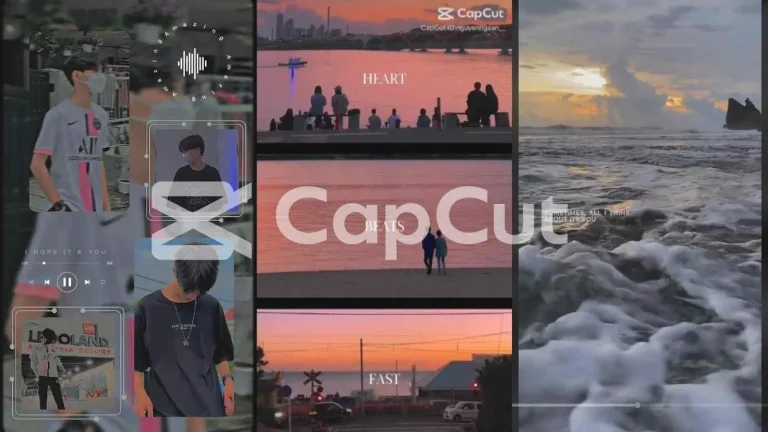
If you have spent any time on TikTok or Instagram Reels lately, you have seen them: slow-motion couple montages, anniversary recaps, and Valentine’s Day edits where photos melt into each other over a soft romantic track. Most of those videos were not edited from scratch. They were built with a love CapCut template — a pre-designed project that already contains the timing, transitions, music cues, and text animations, leaving you to simply drop in your own photos and clips.
That is the whole appeal. A good love template compresses hours of editing decisions into about five minutes of work: pick a template you like, replace the placeholder media with your own, tweak the text, and export. In this guide, we will look at what the love template trend actually is, how to use these templates properly, and how to customize them so your video feels personal instead of copy-pasted.
Why love edits became a CapCut staple
Romance has always performed well on short-form video. Anniversary posts, couple trends, and “us through the years” montages get saved and shared because they carry genuine emotion. CapCut’s template system turned that demand into a format: creators publish template versions of their best-performing romantic edits, and anyone can reuse the exact pacing and effects. The result is a huge, constantly refreshed library of love templates ranging from soft and dreamy to bold and cinematic.
What keeps the trend alive is how low the barrier is. You do not need to understand keyframes, masking, or color grading. The template creator already made those decisions. Your job is curation: choosing the right photos, the right order, and the right words. Done well, a template edit can look like you hired an editor.
What a love template actually gives you
Every template is a little different, but most love templates share the same building blocks. Understanding them helps you pick the right one and customize it with confidence.
Beat-synced cuts
The backbone of nearly every viral love edit. The template’s cuts are timed to the music — photos change on the beat and zooms land on the drop. When you swap in your own media, keep an eye on the timing markers so your best shots land on the strongest beats.
Romantic overlays and transitions
Soft light leaks, floating particles, heart-shaped masks, film grain, and gentle blur transitions are the textures that make a love edit feel dreamy rather than flat. Most templates let you tone these down or turn them off if you prefer a cleaner look.
Animated text layers
Names, dates, short quotes, and “est.” lines — love templates usually include styled text animations such as typewriter reveals, fade-ups, and letter-by-letter entrances. Replace the placeholder text with your own words, and match the font mood to the video: script fonts for romance, clean sans-serif for a modern feel.
How to use a love template, step by step
- Open CapCut and head to the Templates tab, or open a template link you have found elsewhere. Watch the preview to make sure the pacing and mood fit your photos.
- Tap “Use template.” CapCut will show you how many photos or video clips the template needs and the order in which they appear.
- Select your media from your camera roll. Put your strongest, sharpest images first — the opening seconds decide whether people keep watching.
- Replace the placeholder text with names, dates, or a short message. Keep it brief; one or two lines per text layer reads best on a phone screen.
- Preview the full video. Check that faces are not covered by text and that no awkward mid-blink frame landed on a beat.
- Export in 1080p. If you plan to post on TikTok, use the “Save and share to TikTok” option for a clean export without a watermark.
Customization ideas that make it yours
The difference between a forgettable template edit and one people actually comment on is customization. These ideas go beyond simply swapping photos.
Tell a tiny story with photo order
Arrange photos chronologically — first meeting, first trip, recent moments — so the edit has a quiet narrative arc. End on your favorite photo; the last frame is what lingers in the viewer’s mind.
Swap the music deliberately
Templates come with a track, but you can replace it with “your song” or a trending sound. Just make sure the new track has a similar tempo, or the beat-synced cuts will feel off. If the timing drifts, nudge clip lengths slightly to re-align them with the beats.
Add one personal text moment
One sincere line beats five generic quotes. A date, a nickname, or an inside joke in the text layer makes the video unmistakably yours. Keep the template’s font styling intact so it still looks professionally designed.
Grade for mood
After applying the template, try a subtle warm filter for a nostalgic feel or a cooler grade for a modern cinematic look. Small color shifts change the emotional register of the entire edit.
Love template styles worth trying
- Soft romantic: slow zooms, light leaks, and piano tracks — ideal for anniversaries and wedding recaps.
- Cinematic couple edit: film grain, letterbox bars, and dramatic transitions — great for travel footage with a partner.
- Photo dump montage: quick cuts, playful stickers, and an upbeat love song — perfect for “us lately” style posts.
- Lyric video style: big animated lyrics over couple photos — works well when the song choice is the star of the edit.
- Minimal aesthetic: clean cuts, generous white space, and elegant serif text — suits engagement announcements and save-the-dates.
If romantic edits are your thing, you will probably also enjoy the Habibi CapCut Template, which became one of the most reused romantic trends on TikTok thanks to its dramatic beat drops and stylish transitions.
Mistakes that make love edits look cheap
Low-resolution photos stretched to fill the frame. Text covering faces. Five different fonts fighting each other. Music that clashes with the pacing. None of these are template problems — they are selection problems. Use the sharpest photos you have, keep text short and out of the way, stick to the template’s fonts, and preview on your phone (not just inside the editor) before posting.
Frequently asked questions
Are love CapCut templates free to use?
Yes. Templates inside CapCut are free to use — you just need the CapCut app installed. Some advanced effects are marked as Pro, in which case the template preview will tell you before you apply it.
Can I use my own music in a love template?
Absolutely. After applying the template, replace the audio track with any song from your device or CapCut’s library. Check that the beat timing still lines up with the cuts, and adjust clip lengths if needed.
How many photos do I need?
It depends on the template — most ask for somewhere between 5 and 20 photos. The template preview always shows the required count before you commit, so pick a template that matches how much material you actually have.
Why does my exported video look blurry?
That usually means the source photos were low resolution or the export quality was set too low. Use original-quality photos rather than screenshots of screenshots, and export at 1080p or higher.
Love templates work because they remove the technical friction between feeling something and showing it. Pick a template whose mood matches your story, put in the small customization effort, and you will have a video worth sending to exactly one person — or sharing with everyone. For more trending formats to experiment with, browse the latest templates on thecupcut.com, and if you want the full unlocked editing toolkit, check out the CapCut MOD APK latest version.