The Top 5 CapCut Alternatives for Video Editing

CapCut has become one of the most popular video editors in the world, thanks to its free apps for mobile and desktop, its beginner-friendly timeline, and its huge library of templates, effects, and transitions. It is a natural first choice for TikTok videos, Instagram Reels, YouTube Shorts, and everyday edits.
But CapCut is not the only good option. Some creators want a completely free and open-source editor with no account and no watermark. Others need professional color grading or audio tools that go beyond what a mobile-first app offers. And some simply prefer a different workflow: a simpler Apple-native app, or a layered editor built for phones.
In this guide, we compare five real, widely used CapCut alternatives: Shotcut, DaVinci Resolve, OpenShot, iMovie, and KineMaster. For each one, we cover what it actually does well, who it suits best, and where it falls short next to CapCut. All features and pricing below are based on the apps’ publicly documented versions. And if you would rather stay with CapCut, the latest CapCut MOD APK with Premium Unlocked and No Watermark gives you the full feature set in one download.
The 5 Best CapCut Alternatives at a Glance
Here is a quick overview before we look at each editor in detail:
| Editor | Platforms | Price | Best for |
|---|---|---|---|
| Shotcut | Windows, macOS, Linux | Free, open source | Free desktop editing with no watermark |
| DaVinci Resolve | Windows, macOS, Linux, iPad | Free version; Studio $295 one-time | Professional color grading and audio |
| OpenShot | Windows, macOS, Linux | Free, open source | Beginners learning desktop editing |
| iMovie | macOS, iPhone, iPad | Free | Quick, polished edits on Apple devices |
| KineMaster | Android, iOS | Free with watermark; paid plan removes it | Layered video editing on phones |
1. Shotcut
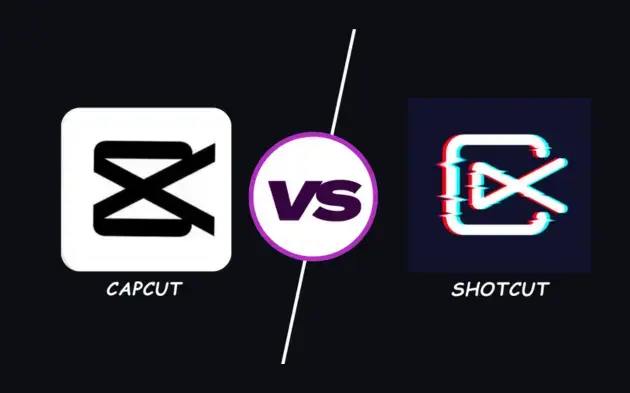
Shotcut is a free, open-source video editor for Windows, macOS, and Linux. It is built on the FFmpeg multimedia framework, so it opens and exports an unusually wide range of video, audio, and image formats without forcing you to convert your files first. You can drop clips straight onto the multi-format timeline and start cutting right away, and finished projects export with no watermark.
Key features of Shotcut
- Unlimited video and audio tracks with keyframeable filters
- Native timeline editing and wide format support, including 4K resolution
- Built-in color, audio, and text filters, plus chroma key for green-screen work
- Screen, webcam, and audio capture, plus network stream playback
- Free forever: no account, no ads, and no watermark
Shotcut is a strong pick if you edit on a desktop and want something genuinely free with no strings attached. The trade-off is the learning curve: the interface is more technical than CapCut’s, and you will not find CapCut’s library of trendy templates, auto captions, or one-tap AI effects. It is an editor for people who want control, not shortcuts.
2. DaVinci Resolve
DaVinci Resolve, made by Blackmagic Design, is the most capable free video editor on this list. It combines editing, color correction, visual effects (the Fusion page), motion graphics, and audio post-production (the Fairlight page) in a single application. Its color-grading toolset is an industry standard used in professional film and television work.
Key features of DaVinci Resolve
- Generous free version; DaVinci Resolve Studio is a one-time purchase of $295
- Industry-standard color grading and correction tools
- Fusion page for visual effects and motion graphics
- Fairlight page for professional audio mixing and mastering
- Multicam editing, HDR grading, and 4K UHD export in the free version
Choose DaVinci Resolve if you have outgrown mobile editing and want desktop software that can genuinely compete with paid suites. The downsides are real, though: it has a steep learning curve, it needs a reasonably powerful computer to run smoothly, and it lacks CapCut’s library of social-media templates and quick effects. This is a professional tool, not a casual one.
3. OpenShot
OpenShot is a free, open-source editor designed to be as approachable as possible. It runs on Windows, macOS, and Linux, and it is often recommended as a first desktop editor for beginners and students who want to learn real timeline editing without paying anything or creating an account.
Key features of OpenShot
- Simple drag-and-drop timeline with unlimited tracks and layers
- Keyframe animation for fades, slides, swings, and zooms
- 3D animated titles and effects, plus slow-motion and time effects
- Built-in audio mixing with waveform display and video effects
- Free and open source, with no watermark on exports
OpenShot is ideal for absolute beginners who want to understand the basics of cutting, trimming, layering, and keyframing on a computer. It is less powerful than Shotcut and far less powerful than DaVinci Resolve, and it does not offer CapCut-style templates, auto captions, or AI tools. Think of it as a friendly starting point, not a long-term professional home.
4. iMovie
iMovie is Apple’s free video editor. It comes preinstalled on every Mac and is available free for iPhone and iPad, which makes it the simplest switch for Apple users looking for a CapCut alternative. It is a non-destructive editor: your original clips are never altered, so you can experiment freely.
Key features of iMovie
- Free on macOS and iOS, with no watermark
- Magic Movie and Storyboards for fast, guided editing
- Green-screen effect, picture-in-picture, and split-screen
- Built-in themes, trailers, filters, titles, and transitions
- 4K video support, with projects that can be opened in Final Cut Pro
iMovie is perfect for quick, polished edits: travel videos, school projects, family clips, and simple YouTube videos. Its limits are also clear: it is Apple-only, it offers fewer manual controls than desktop editors like DaVinci Resolve, and its template selection is small compared with CapCut’s. If you ever outgrow it, your projects move straight into Final Cut Pro.
5. KineMaster
KineMaster is a mobile-first editor for Android and iOS, built around multi-layer editing on a phone or tablet. Video, images, text, effects, and audio can each sit on their own layer, much like a desktop timeline, and you can trim clips with frame-by-frame precision.
Key features of KineMaster
- Multi-layer timeline with frame-by-frame trimming
- Chroma key (green screen), blending modes, and keyframe animation
- Voiceovers, voice changer, speed control, and audio mixing
- Asset store with transitions, effects, stickers, fonts, and music
- Available on both Android and iOS
KineMaster suits mobile creators who want more precise, layer-based control than most phone editors offer. One honest caveat: the free version adds a watermark to exported videos, and a paid subscription is required to remove it and unlock the full asset store. By comparison, CapCut’s free exports carry no such restriction, which is one reason the CapCut MOD APK with No Watermark remains so popular with mobile creators.
How to Choose the Right CapCut Alternative for You
- Want free desktop editing with no watermark? Pick Shotcut for power or OpenShot for simplicity.
- Want professional color grading and audio? DaVinci Resolve is in a different league from everything else here.
- Edit on iPhone, iPad, or Mac and want the easiest path? iMovie is free, fast, and already on your device.
- Want layered editing on your phone? KineMaster is the closest mobile match, but budget for the subscription if the watermark bothers you.
- Want templates, effects, and social-ready exports? Stick with CapCut. The CapCut MOD APK with Premium Unlocked covers everything in one app.
FAQs About CapCut Alternatives
What is the best completely free CapCut alternative with no watermark?
Shotcut and OpenShot are both free, open-source desktop editors with no watermark and no account required. DaVinci Resolve’s free version is also watermark-free and far more powerful, although it is harder to learn.
Which CapCut alternative is best for mobile editing?
KineMaster is the closest mobile-first alternative, with a layered timeline and frame-accurate trimming, but its free version adds a watermark to exports. On iPhone, iMovie is free with no watermark. For most mobile creators, CapCut itself – including the CapCut MOD APK with No Watermark – remains the strongest free option overall.
Is DaVinci Resolve really free?
Yes. Blackmagic Design offers a free version of DaVinci Resolve that includes professional editing, color correction, visual effects, and audio tools. The paid Studio version costs $295 as a one-time purchase and adds higher-resolution output, stereoscopic 3D tools, and additional AI-powered features.
Can I use these alternatives for YouTube or TikTok videos?
Yes. All five editors support common export formats and aspect ratios for YouTube, TikTok, Instagram Reels, and Facebook. Just set your project to a vertical 9:16 frame for short-form platforms, or 16:9 for standard YouTube videos.
Do I need a powerful computer to run these editors?
It depends on the app. Shotcut, OpenShot, and iMovie run well on modest hardware. DaVinci Resolve is the exception: its professional color and effects tools benefit greatly from a fast processor, plenty of RAM, and a capable graphics card. KineMaster runs on phones, so any recent Android or iOS device will handle it.
Conclusion
There is no single best CapCut alternative – only the best one for how you edit. Shotcut and OpenShot give desktop users genuinely free, watermark-free editing. DaVinci Resolve gives ambitious creators professional-grade color and audio that no other free editor matches. iMovie gives Apple users the fastest path from idea to finished video. And KineMaster gives mobile creators a layered timeline in their pocket.
That said, if your workflow is built around templates, effects, and quick social exports, CapCut is still hard to beat. Grab the latest CapCut MOD APK with Premium Unlocked and No Watermark, and check out these video editing tips for CapCut to get more out of every project.