Music makes or breaks a video. The right track turns a plain montage into something emotional, funny, or epic, while the wrong track, or silence, makes even great footage feel flat. CapCut gives you four different ways to get music into your project: its built-in library of licensed tracks, your own audio files, songs from your device, and audio extracted from other videos. This guide walks through each method in one clean workflow, then shows you how to trim, fade, and sync the music once it is sitting on your timeline.

The Four Ways to Get Music Into CapCut
Before the steps, know your options. Tap Audio in the bottom toolbar of any project and you will see:
- Music. CapCut’s own library of licensed tracks and sound effects, organized by mood and genre.
- Your sounds. Import MP3s and audio files stored on your device or in cloud storage.
- Extracted. Pull the audio out of any video saved on your phone.
- Device library. On iPhone, browse songs from your local music library.
The sections below cover each method. Pick the one that fits your project.
Method 1: Adding Music From CapCut’s Library
- Open your project and tap Audio. Find it in the bottom toolbar, below the preview.
- Tap Music. This opens CapCut’s built-in library of tracks and sound effects.
- Browse or search. Explore categories like Vlog, Travel, or Cinematic, or type a mood into the search bar.
- Preview the track. Tap any song to hear it before committing.
- Download and add it. Tap the download icon, then the plus sign. The track lands on your audio timeline, ready to edit.
Library tracks are licensed for use in your videos, which saves you from most copyright headaches on TikTok and other platforms.
Method 2: Adding Your Own Music Files
- In your project, tap Audio, then tap Your sounds.
- Tap From device to browse files on your phone, or use the file browser to pull audio from cloud storage like iCloud Drive or Google Drive.
- Select your MP3 or audio file.
- Tap the plus sign to add it to the timeline.
Stick to common formats like MP3 or M4A. Obscure file types sometimes refuse to import, and converting them first saves frustration.
Method 3: Extracting Audio From a Video
- Tap Audio, then tap Extracted.
- Choose the video that contains the sound you want.
- Tap Import sound only.
CapCut pulls the audio track onto your timeline and leaves the video behind. This is perfect for reusing a voiceover, grabbing a song from a clip, or capturing a sound effect you heard somewhere.
Editing Your Music Once It Is on the Timeline
Getting the track in is only half the job. Tap the audio clip on the timeline to select it, then use these tools:
- Trim. Drag the edges of the audio clip to cut the start or end.
- Split. Move the playhead where you want a cut and tap Split. The track divides into pieces you can rearrange, delete, or silence individually.
- Volume. Tap Volume and drag the slider to balance the music against dialogue or narration. Music sitting under speech usually works best around 10 to 20 percent.
- Fade. Tap Fade to add a fade-in at the start and a fade-out at the end, so the music never starts or stops abruptly.
- Speed. Stretch or compress the track’s timing to fit your video. Use this carefully, since it also changes the pitch.
- Voice effects. Under Audio effects you will find Chipmunk, Robot, Echo, and more for voiceovers and fun clips.
Syncing Your Edit to the Beat
Edits that land on the beat feel professional. Here is how to nail the timing:
- Create beat markers. Select the music clip, tap Beats, then Create beats automatically. Yellow dots appear along the track on every beat.
- Cut on the dots. Split your video clips exactly on the beat markers. Cuts that land on beats give the video its punchy rhythm.
- Time the reveal to the drop. Line up your most important shot with the moment the music drops or changes. That synchronization is what makes edits feel epic.
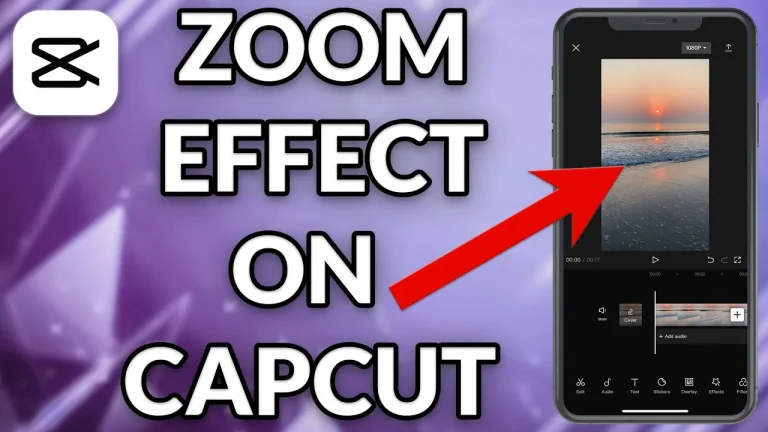
- Match the tempo to the cutting pace. Fast tracks suit quick cuts. Slow, emotional tracks suit long fades and gentle movement, like a slow zoom in CapCut.
Frequently Asked Questions
Is CapCut’s built-in music free to use?
Yes. Tracks in CapCut’s Music library are licensed for use in your videos, including videos you post on TikTok and other platforms. That license is the main reason to prefer the built-in library over random downloads.
Can I add Spotify music to CapCut?
Not directly. Spotify streams are protected and cannot be imported as files. If you own the song as a downloaded file, for example an MP3 you purchased, add it through Your sounds and From device instead.
Why can’t I hear my music after adding it?
Check four things: the clip’s Volume slider is not at zero, your phone is not on silent, the audio clip is not muted on the timeline, and the track actually sits under the playhead where you are previewing. One of these is almost always the cause.
Can I add music on CapCut for PC?
Yes. On the desktop version, open the Audio tab in the left panel to browse the music library, or drag your own audio files straight from your computer onto the timeline. Trimming, fading, and volume controls all work the same way.
Will my video get a copyright strike for its music?
Music from CapCut’s built-in library is licensed and generally safe. Commercial songs you add yourself can be flagged or muted when you post on TikTok, YouTube, or Instagram. When in doubt, use the built-in library.
Good music elevates every kind of edit. Pair your soundtrack with clean visuals, like a green screen background in CapCut, and your videos will look and sound far more professional. If you want the full premium audio and effects library, CapCut MOD APK unlocks it without a subscription.
A Final Tip: Keep a Go-To Music Folder
Once you find tracks you love in CapCut’s library, tap the bookmark or favorite icon to save them to your collection. Over a few projects you will build a personal stash of go-to songs for vlogs, transitions, and emotional moments. Having those tracks ready means you spend less time hunting for music and more time editing, and your videos start to develop a consistent sound that viewers recognize as yours.